Segments is a powerful customer segment builder that lets you group your customers based on their purchasing behavior, then push those groups directly to your marketing platforms for targeted campaigns.
Whether you want to reward your best customers, win back dormant ones, or target first-time buyers with the right message, Segments gives you the data and the tools to do it.
What Can You Do with Segments?
- Build customer groups based on order history, spend, and recency
- Preview live data before committing to a segment
- Save segments that auto-refresh every day with up-to-date customer data
- Track segment performance at a glance with size, total orders, total sales, and average order value
- Sync to marketing platforms (Google Ads, Klaviyo, and Meta) to run targeted campaigns
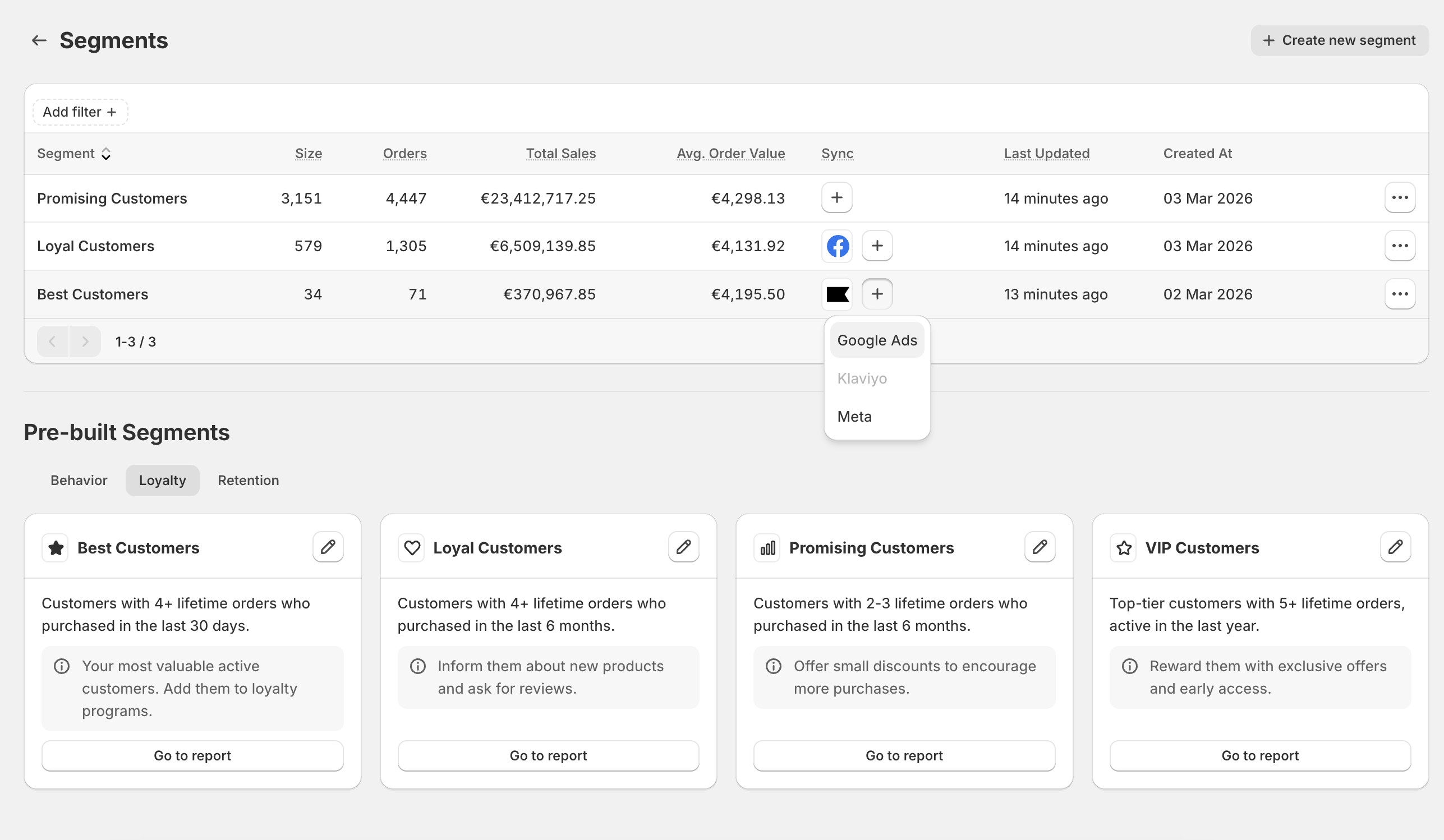
Step 1: Start with a Pre-Built Template
When you open Segments for the first time, you'll find 10 ready-to-use templates organized into three categories:
|
Category |
Templates |
|---|---|
| Loyalty |
Best Customers, Loyal Customers, Promising Customers, VIP Customers |
| Retention |
Needs Re-engagement, At Risk Customers, Dormant Customers |
| Behavior |
New Customers, One-Time Buyers, Repeat Buyers |
Each template comes with a pre-defined rule set (for example, "4+ orders in the last 30 days") and a suggested marketing action tip. Templates are the fastest way to get started — no setup required.
Step 2: Real-time Preview a Template with "Go to Report"
Before saving anything, you can preview what a segment looks like against your real data.
Click Go to Report on any template card to see:
- A live table of matching customers (email, name, orders, total sales, average order value)
- The underlying ShopifyQL query so you can see exactly how customers are being filtered
- An Export button to download the results as a CSV
Step 3: Save a Template as a Segment
To turn a template into a reusable segment:
- Open the template report
- Click More Actions → Edit
- Review the pre-filled filters and rules (keep them as-is or customize them)
- Click Save Segment
Once saved, the segment appears in your Segments list and will automatically sync every day with fresh customer data. No manual refreshing needed.
Step 4: Build a Segment from Scratch
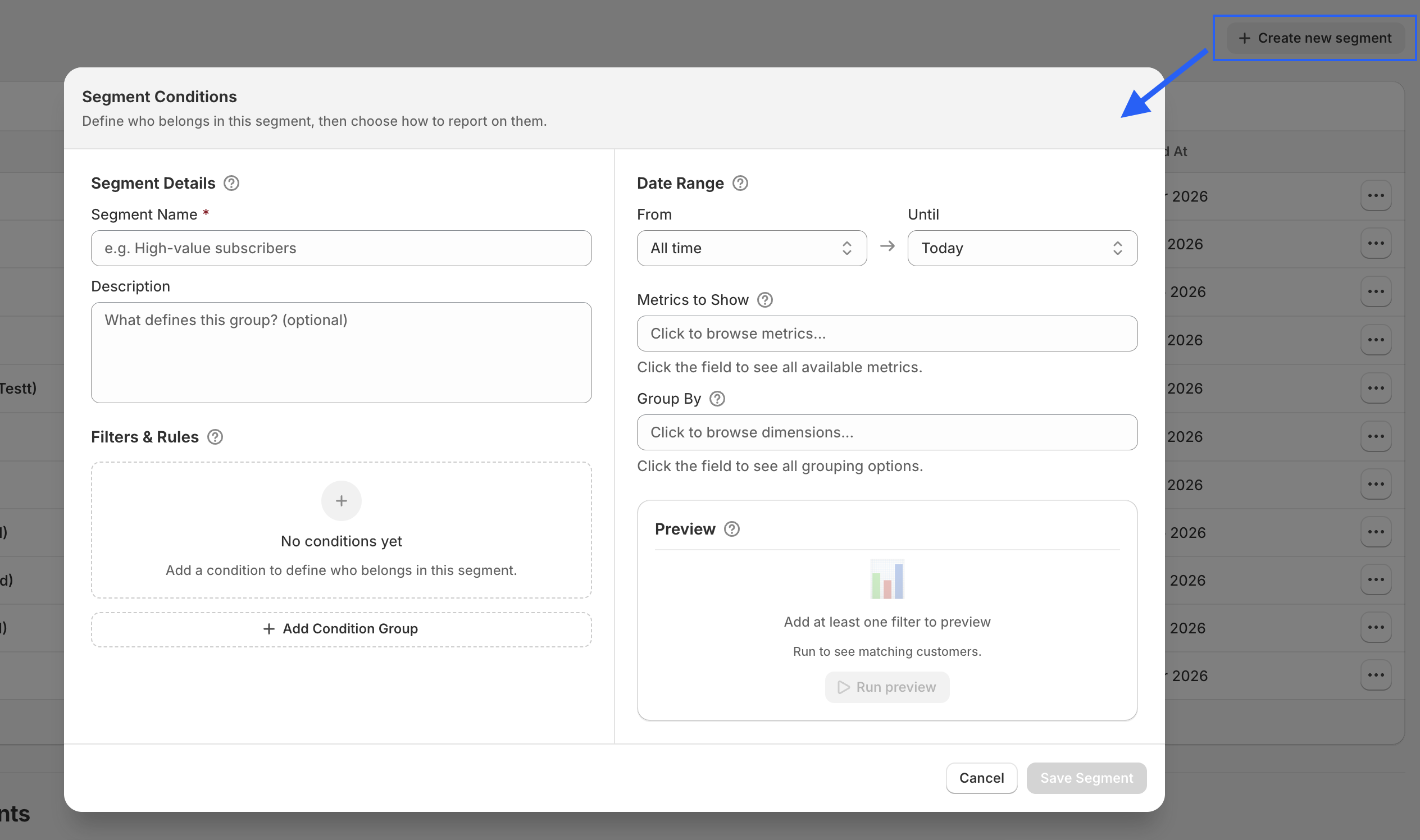
Need full control over your criteria? Click + Create new segment in the top-right corner of the Segments screen.
The Segment Builder lets you:
- Give your segment a name and description
- Set a date range (e.g., last 30 days, last 6 months, last year)
- Define Filters & Rules such as number of orders, amount spent, or any combination using AND/OR logic
- Choose Metrics to Show (customers, orders, total sales, average order value)
- Choose Group By dimensions (customer email, customer name, etc.)
- Run a live preview before saving to validate your results
Understanding Your Segments List
Once you've saved one or more segments, the Segments list gives you a quick performance snapshot for each one right without opening anything.
|
Column |
What It Shows |
|---|---|
| Segment |
The name of your saved segment |
| Size |
Number of unique customers currently in this segment |
| Orders |
Total number of orders placed by customers in this segment |
| Total Sales |
Combined revenue from all orders in this segment |
| Avg. Order Value |
Average order value across all customers in the segment |
| Sync |
Which marketing platforms this segment is connected to |
| Last Updated |
When the segment data was last refreshed |
| Created At |
The date the segment was first saved |
These metrics update automatically with each daily sync, so you always have a current view of each segment's size and value.
Step 5: Sync to Your Marketing Platforms
Once a segment is saved, you can push its customer list to your marketing tools for use in ad targeting or email/SMS campaigns.
Supported integrations:
- Google Ads — use customer lists for audience targeting
- Klaviyo — sync lists for email and SMS campaigns
- Meta — push audiences to Facebook and Instagram for paid social campaigns
How to connect a platform:
- From the Segments list, click the + button on the segment row
- Select your platform (Google Ads, Klaviyo, or Meta)
- Complete the authentication steps
- Once connected, the platform logo will appear on the segment row
After connecting, the customer list will be sent to the platform automatically with every daily sync. What you do with the audience inside Google Ads, Klaviyo, or Meta is entirely up to you.
Pre-built Templates
|
Template |
Category |
Rule |
Date Range |
|---|---|---|---|
|
Best Customers |
Loyalty |
4+ orders |
Last 30 days |
|
Loyal Customers |
Loyalty |
4+ orders |
Last 6 months |
|
Promising Customers |
Loyalty |
2–3 orders |
Last 6 months |
|
VIP Customers |
Loyalty |
5+ orders |
Last 1 year |
|
Needs Re-engagement |
Retention |
Exactly 1 order |
3–6 months ago |
|
At Risk Customers |
Retention |
Any purchase |
6–12 months ago |
|
Dormant Customers |
Retention |
Any purchase |
1–3 years ago |
|
New Customers |
Behavior |
Exactly 1 order |
Last 30 days |
|
One-Time Buyers |
Behavior |
Exactly 1 order |
Last 1 year |
|
Repeat Buyers |
Behavior |
2+ orders |
Last 1 year |
Key Concepts at a Glance
|
Term |
What It Means |
|---|---|
| Template |
A pre-built, read-only starting point. Real-time preview it with "Go to Report", then save to activate. |
| Segment |
A saved, named customer group. Auto-syncs daily with fresh data. |
| Filters & Rules |
Conditions that define who belongs in a segment (order count, spend, date range, etc.) |
| Segment Metrics |
Summary stats shown in the Segments list such as size, orders, total sales, and average order value. |
| Connections |
A connection between a segment and a marketing platform (Google Ads, Klaviyo, or Meta). |
| Daily Sync |
All saved segments refresh automatically every day. No manual action needed. If you want to disable, you can disconnect synced platform. |
