Purchase Attribution Analytics tracks the complete customer journey from first website visit to final purchase. It captures every marketing touchpoint – from Google Ads and Facebook campaigns to referral traffic and direct visits – and shows you exactly which channels contribute to each sale.
Note : This feature is currently in Beta. We're actively improving it based on user feedback.
Most stores only see where the order came from at checkout. But customers often visit multiple times through different channels before buying. Analyzify's Purchase Attribution report reveals:
- First Touch : Which channel initially brought the customer to your store
- Middle Touches : Which campaigns they interacted with along the way
- Last Touch : Where they were right before purchasing
- Full Timeline : Every session with timestamps and campaign details
This complete picture helps you understand what's really driving sales, not just what happened last.
How It Works Technically
When you activate this report or set up server-side tracking, Analyzify captures customer journey data in two ways:
Method 1: Analyzify Database Storage
- Collects UTM parameters, traffic sources, click IDs, and cart data
- Stores in Analyzify's secure database
- Used to power your Attribution Report
Method 2: Shopify Order Notes
- Writes journey data to Shopify order notes
- Makes data visible when viewing orders in Shopify admin
- You control whether this is enabled
Both methods work together to ensure reliable attribution tracking. Your Attribution Report works regardless of which method you choose, the choice simply controls whether data is also visible in Shopify.
Getting Started
Step 1. Access Attribution Analytics
-
- Click "Attribution" in your Analyzify left menu
- You'll see a setup modal on your first visit
Step 2. Choose Your Display Preference
-
- The modal asks: "Where do you want customer journey data to appear?"
Option 1: Include in Shopify order pages (Recommended)
-
- Journey data appears in both Analyzify and Shopify order notes
- Provides the most reliable tracking with dual storage
- You can see attribution data when viewing orders in Shopify admin
Option 2: Keep Shopify order pages clean
-
- Journey data only appears in Analyzify dashboard
- Shopify order notes stay minimal
- Attribution Report still works perfectly
Step 3. Confirm and Save
- Check the confirmation box: "I understand that Analyzify will collect and use order data to generate reports"
- Click "Save settings"
- Activation complete!
Understanding the Data
Analyzify Dashboard
- Orders Table : Shows attribution summary for each order
- Campaign Table : Aggregates data by campaign
- Order Details : Full journey timeline
Note
:
azfy_cart_id
always appears in order notes regardless of your settings. Other data (utm_history, clids, cookies, consent) only appears if you've enabled the Shopify display option.
Data Format Explained (in Order Notes)
The timestamp (like
1767822515
) represents when the session occurred. The array shows the captured data:
-
src:google→ Traffic came from Google -
med:cpc→ It was paid advertising (cost-per-click) -
camp:pmax-all-higher-products→ Campaign name -
pid:420840796743→ Clicked product ID -
ref:google.com→ Referrer was google.com
Analyzify captures the following information for each customer session:
UTM Parameters
These are marketing tags added to your URLs by ad platforms:
- utm_source (shown as "src"): Where traffic came from (google, facebook, newsletter)
- utm_medium (shown as "med"): Marketing channel type (cpc, social, email)
- utm_campaign (shown as "camp"): Specific campaign name
- utm_term (shown as "term"): Keywords (for search campaigns)
- utm_id (shown as "id"): Campaign ID
Other Information
- Referrer : The website that linked to your store
- Click IDs : Tracking parameters from ad platforms (gclid, fbclid, etc.)
- Clicked Product ID (pida) : Which product the customer clicked on in ads (requires Google Ads configuration)
- Session Timestamp : Exact date and time of each visit
- Cart ID : Unique identifier linking cart to order
- Analytics Cookies : For connecting sessions
- Consent Status : Whether customer accepted tracking
Note : To track clicked product IDs, you need to configure your Google Ads campaigns to pass product IDs. Contact Analyzify support to learn how to set this up. A detailed guide will be available soon.
Quick Access from Shopify
You can also view order attribution details directly from Shopify admin:
- Open any order in your Shopify admin
- Click "More actions" (top right)
- Select "Analyzify Order Details"
- Opens the complete journey timeline for that order
Important Limitation : This quick access link only works for orders created within the last 2 months. Shopify doesn't allow app access to order actions for older orders. However, you can still view all orders (regardless of age) in your Analyzify dashboard by navigating to Attribution and finding the order there.
Managing Your Settings
Changing Display Settings
You can change whether journey data appears in Shopify order notes at any time.
Steps :
- Go to Analyzify Settings
- Click "Integration Settings"
- Find the toggle: "Show Analyzify data in Shopify order pages"
- Turn it ON or OFF based on your preference
When turned ON :
- New orders will show utm_history, click IDs, cookies, and consent data in Shopify order notes
- Provides backup data source
- Makes attribution visible when viewing orders in Shopify
When turned OFF :
- New orders will only show azfy_cart_id in Shopify order notes
- Order notes stay cleaner
- Attribution Report still works perfectly
Orders Table
The Purchase Attribution Analytics table shows all your orders with their attribution data at a glance.
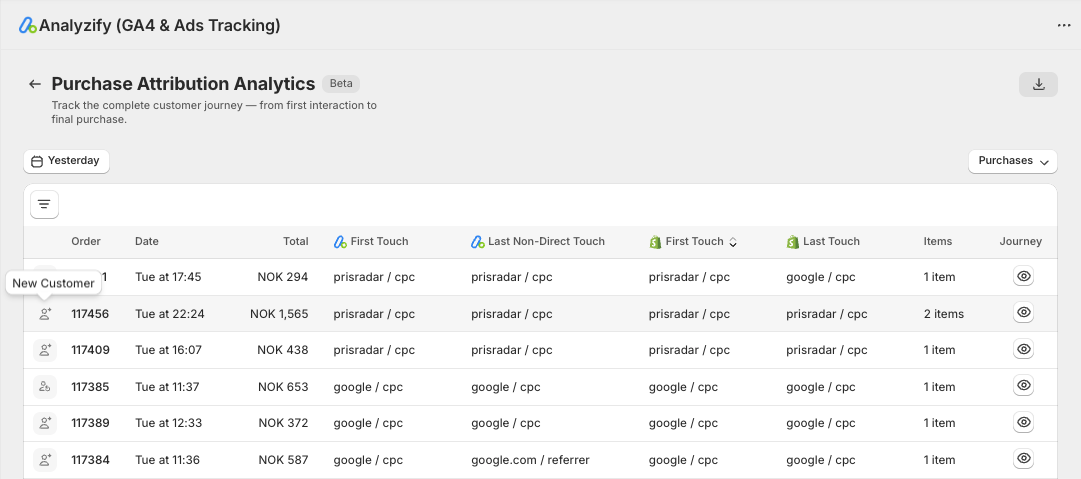
Order & Date
- Order number (click to view journey details)
- Purchase creation date
Customers
- Customer type (icons show if they are new or returning customers)
- Order value
Attribution Columns
First Touch (Analyzify)
- The very first channel that brought the customer to your store
-
Format:
source / medium(e.g.,google / cpc,facebook / social) - Shows how customers discover you
Last Non-Direct Touch
- Last marketing channel before purchase (ignoring direct traffic)
- Reveals what influenced the buying decision
-
Shows
-if only direct visits occurred
First Touch (Shopify) & Last Touch (Shopify)
- Shopify's native attribution for comparison
- Useful to cross-reference with Analyzify's tracking
Campaigns Table
View your marketing performance aggregated by campaign. This shows which campaigns drive the most revenue and orders based on your selected attribution model.
Attribution models determine how credit is assigned to different marketing channels. You can switch between models using the dropdown in the top-right.
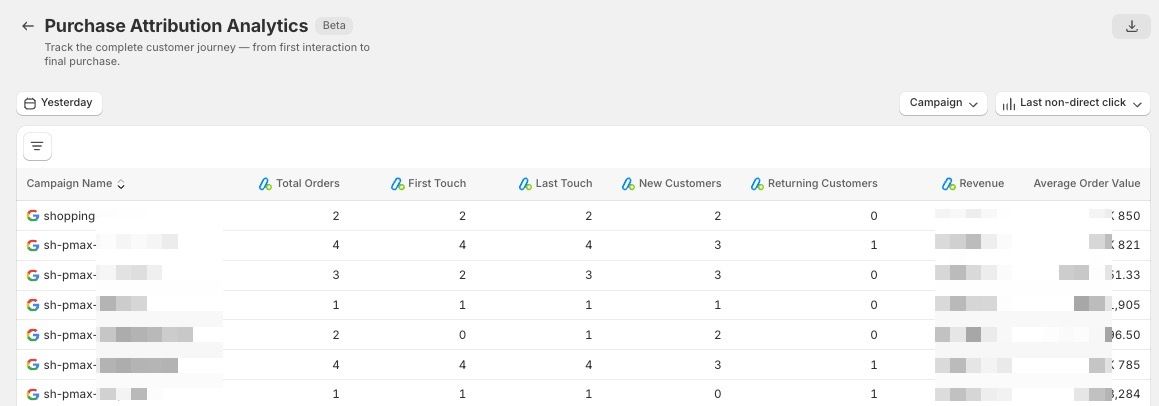
Campaign Detail View
Click any campaign name to see:
- Every order that included this campaign
- Full attribution breakdown per order
- Complete journey access
The 4 Attribution Models
These models can be selected on Campaign table as shown above.
1. Any Click
100% credit given to each channel clicked
- Every touchpoint gets full credit
- Useful for understanding all channels that contributed
- Total orders across channels will sum higher than actual orders
- Best for: Seeing the full scope of channel involvement
Example : Customer visits via Google Ads, then Facebook, then purchases directly
- Result: Google gets 1 order, Facebook gets 1 order, Direct gets 1 order (Total: 1 actual order, counted 3 times)
2. First Click
100% credit given to the first channel clicked
- Only the initial touchpoint gets credit
- Shows which channels are best at discovery and awareness
- Ignores everything that happened after
- Best for: Understanding what brings customers in initially
Example : Customer visits via Google Ads, then Facebook, then purchases directly
- Result: Only Google gets credit (1 order)
3. Last Non-Direct Click (Default)
Direct is ignored, 100% credit given to the last channel clicked
- Most common attribution model
- Focuses on the last marketing touchpoint before purchase
- Excludes direct traffic (customers who came directly)
- Best for: Understanding what influences the purchase decision
Example : Customer visits via Google Ads, then Facebook, then purchases directly
- Result: Only Facebook gets credit (1 order)
Example 2 : Customer visits via Google Ads, then purchases via Google Ads
- Result: Google gets credit (1 order)
4. Last Click
100% credit given to the last channel clicked
- The final touchpoint gets all credit, including direct
- Shows the immediate source before purchase
- Best for: Understanding the last interaction before conversion
Example : Customer visits via Google Ads, then Facebook, then purchases directly
- Result: Only Direct gets credit (1 order)
Choosing the Right Model
Use First Click when :
- You want to optimize for customer acquisition
- You're focused on top-of-funnel marketing
- You want to know what brings people in
Use Last Non-Direct Click when :
- You want to optimize for conversion
- You're focused on what drives the purchase decision
- You want to exclude direct traffic from attribution (most common choice)
Use Last Click when :
- You want to see everything, including direct traffic
- You're analyzing the immediate pre-purchase behavior
Use Any Click when :
- You want to see all channel involvement
- You're analyzing channel overlap
- You understand totals will sum higher than actual orders
Troubleshooting
Why Don't I See Data for Some Orders?
Important : Not all orders will contain UTM or journey data. This is normal and expected in modern e-commerce.
-
Browser Privacy Settings (ITP)
- Apple's Intelligent Tracking Prevention (Safari, iOS)
- Firefox Enhanced Tracking Protection
- Chrome's privacy features
- These browsers automatically limit tracking to protect user privacy
- This is the most common reason for missing data
-
Ad Blockers
- Many customers use ad-blocking extensions
- These block tracking scripts and parameters
- Increasingly common among privacy-conscious users
-
Cross-Device Purchases
- Customer clicks ad on mobile, purchases on desktop
- Customer browses at work, purchases at home
- Cookies don't transfer across devices
- Journey data may be incomplete or missing
-
Customer Declined Tracking
- If customers reject cookie consent, some data may be limited
- You'll see basic referrer data but may miss UTM parameters
-
Check the
azfy_consentfield in order notes
-
No UTM Parameters
- If the customer came from an untagged link, you'll only see referrer
- Ensure all marketing links include UTM parameters
- Organic traffic won't have campaign data
-
Direct Traffic Only
- If a customer only visited directly (typed URL, bookmark), there's no first touch marketing channel
- You'll see "direct / referrer" in the data
-
Old Orders (Before Enabling)
- Attribution tracking only works for orders created after enabling this feature or server-side tracking before.
- Historical orders won't have attribution data
Why Is Data Different from Shopify's Attribution?
Analyzify and Shopify track attribution differently:
Analyzify :
- Captures complete journey across all sessions
- Uses multiple data collection methods
- Provides more detailed campaign information
- Shows clicked products
Shopify :
- Native Shopify attribution
- May use different logic
- Shown for comparison
Both are useful – use them together for the most complete picture.
Can't Access Order from Shopify "More Actions"?
If the "Analyzify Order Details" link doesn't work:
- Check Order Dates
-
- This quick access only works for orders from the last 2 months
- Shopify restricts app access to order actions for older orders
- This is a Shopify limitation, not an Analyzify issue
- Access Through Dashboard Instead
-
- Open your Analyzify dashboard
- Go to Attribution
- Find the order in the orders table
- Click to view full details
What Beta Means :
- The feature is fully functional but actively being improved
- We're gathering user feedback
- New features and enhancements coming
- Minor bugs may occur
How to Help :
- Report any issues you encounter
- Share feedback on what would make it more useful
- Suggest additional features you'd like to see
Support
If you encounter issues:
- Check this guide for answers
- Verify your settings are correct
- Contact Analyzify support with:
-
- Description of the issue
- Screenshot if possible
- Example order number affected
- Your store name
Conclusion
Purchase Attribution Analytics gives you visibility into the complete customer journey. By understanding which channels bring customers in, which campaigns drive decisions, and how customers interact across multiple touchpoints, you can make smarter marketing decisions.
Key Takeaways :
- Attribution tracking is automatic once enabled
- Choose different models to answer different questions
- Campaign analysis reveals marketing effectiveness
- Order journeys show detailed customer behavior
- Settings are flexible – change them anytime
Start exploring your attribution data today to discover insights about your customer journey.
Questions or Feedback? We'd love to hear from you. This feature is in Beta and we're continuously improving based on user input. Contact our support team or use the feedback option in your dashboard.
