If you sell into several countries with Shopify Markets, you probably don't run one Google Ads account for all of them. Different regions, different agencies, different accounts.
Analyzify can now route each buyer's conversions to the right place. A German shopper's purchase lands in your German account with your German conversion label. A US shopper's lands in your US account. Anyone from a country you haven't configured lands in your main account.
You set this up once. After that it runs on its own, and new markets you create in Shopify sync in automatically.
You'll want this if:
- You run more than one Google Ads account
- You want separate conversion actions per country for cleaner reporting
- You want remarketing on in some regions and off in others
You can skip it if you run a single Google Ads account for the whole store. Using Shopify Markets for currency or pricing alone doesn't mean you need this.
Before you start
Three things to sort out first.
1. Finish your main Google Ads setup. Go to Integrations → Google Ads and complete the setup as normal. This is your Global account, and it's required. It handles every visitor who isn't in a market you've configured, and every market you set up later inherits from it.
When you finish, we'll take you straight to the Markets page.
2. Activate your markets in Shopify. Only active markets sync into Analyzify. Drafts won't appear. If a market is missing from the list later, this is almost always why.
We'll also ask for permission to read your markets — Shopify requires you to approve this separately. Approve it when prompted, or the Markets page will have nothing to show.
3. Know the refund tracking trade-off.
Refund tracking and Shopify Markets can't be used together. If you use markets, refund tracking has to stay off across all your Google Ads setups — including Global. Decide which one matters more to you before you start.
How to set up
Step 1: Open the Markets page
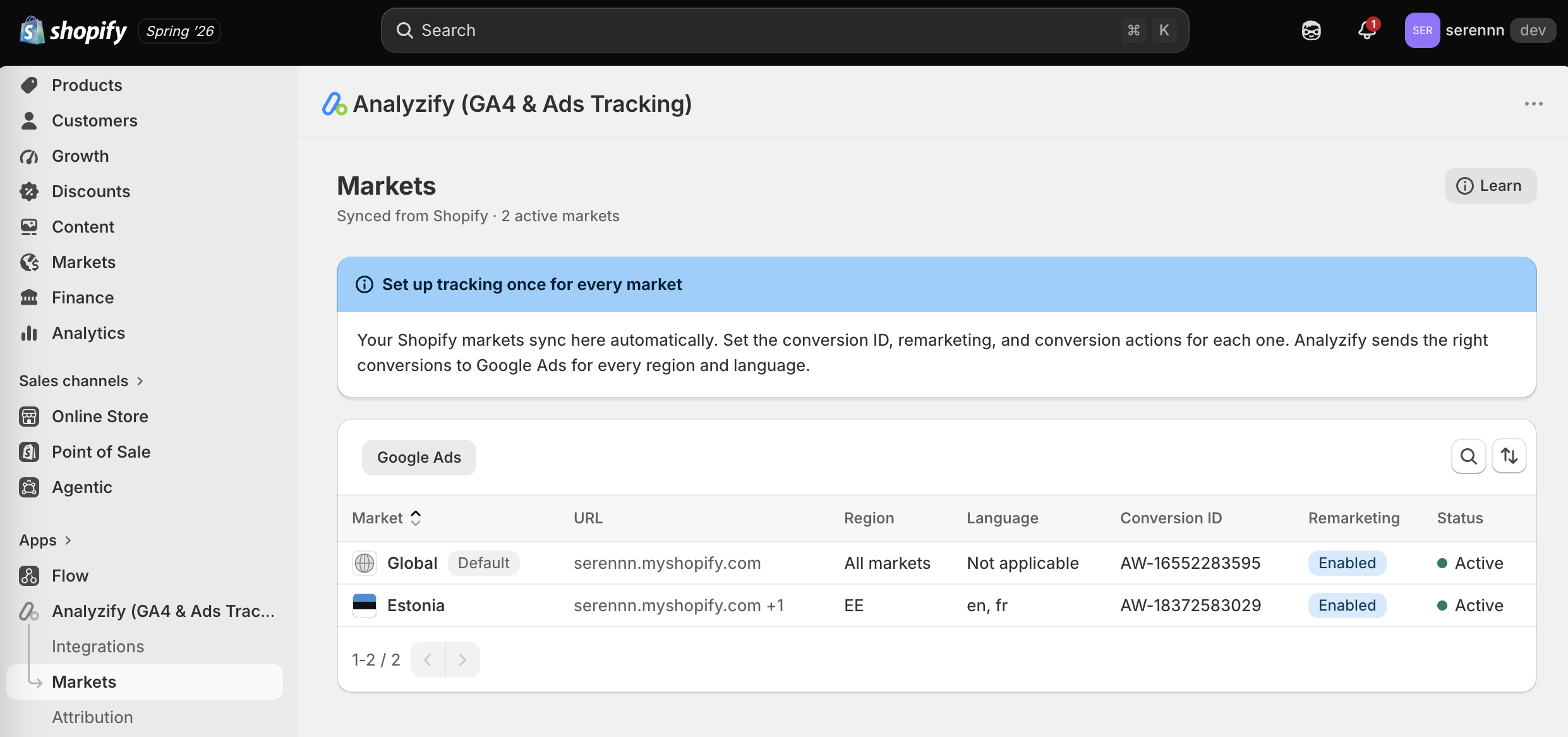
Your active Shopify markets appear here automatically, with Global at the top marked Default .
Each row shows what's actually in effect for that market — its Google Ads account, whether remarketing is on, and whether it's set up yet. This is your at-a-glance view; come back here any time to check your configuration.
Step 2: Set up each market
Click a market to open it. You'll configure them one at a time.
Google Ads Account — choose Automatic to pick from your connected Google accounts, or Manual to enter the details yourself. If a market should keep using your Global account, leave it alone.
Google Conversion ID
— the
AW-…
for this market. When you set one, you'll see a per market badge showing this market now overrides Global. Reset puts it back to inheriting.
Enable remarketing — turn Google Ads dynamic remarketing on or off for this market specifically.
Languages — if the market serves more than one language, choose:
- Same for all languages — one set of conversion labels for the whole market
- Per language — different labels for each language
Conversion Labels — your conversion action label for each event: Purchase, Add to cart, Begin checkout, Product views, Lead form.
Setting up several similar markets? Use Fill from → Choose a market to copy labels from one you've already done, then adjust.
Step 3: Save
Changes apply immediately. Saving a market never affects your main Google Ads setup, so you can adjust markets freely without worrying about breaking your existing tracking.
If your store uses our custom pixel, give it a few seconds and refresh before checking your live site.
Only fill in what's different
This is the part worth understanding, because it saves you a lot of setup.
Anything you leave blank is inherited. A market with no Conversion ID uses Global's. A market with no Purchase label uses Global's Purchase label.
They're inherited independently, too. You can give a market its own Purchase label while it keeps using Global's account which is exactly what you want if you run one account per region but want separate conversion actions per country.
When a buyer arrives, Analyzify looks for the most specific match:
Their country + language → their country → their market → Global
The first one that has a value wins.
An example.
Say you set up an EU market with account
AW-111
and label
euPurchase
, then add a Netherlands entry with just the label
nlPurchase
:
|
Buyer |
Account |
Label |
|---|---|---|
|
Germany |
AW-111
|
euPurchase
|
|
Netherlands |
AW-111
(inherited from EU) |
nlPurchase
|
|
Japan (not configured) |
Global |
Global |
One thing to watch: if a conversion label ends up blank everywhere — on the market and on Global — that event won't be sent for those buyers. If conversions go quiet for one country, check the labels first.
Enable Dynamic Remarketing
Remarketing is no longer a separate integration. It's now a switch: one on your Global setup, and one on each market. That means you can run remarketing in some regions and not others.
If you had remarketing set up before, we turned it on for you automatically. Nothing stopped, and you don't need to redo anything.
Good to know
- Markets sync automatically. Create a new market in Shopify and it appears here, ready to set up.
- Renaming a market in Shopify is safe. We don't rely on display names.
- Your main setup is never touched. Editing markets doesn't re-run or re-validate your main Google Ads integration.
What's not possible right now
| Refund tracking with markets |
Can't be enabled on any Google Ads setup while markets is in use. |
| Choosing remarketing events |
One switch per market — no per-event selection. |
| A different Merchant Center ID per market |
Conversion ID and labels vary per market; Merchant Center ID stays store-wide. |
| Markets for other integrations |
Google Ads only for now. |
| Other conversion events |
Purchase, Add to cart, Begin checkout, Product views and Lead form are supported. |
| Draft markets |
Only active Shopify markets sync. |
| Per-market reporting inside Analyzify |
We route conversions into your Google Ads accounts — you'll do your reporting there. |
Troubleshooting
My markets list is empty. Either your markets aren't active in Shopify, or the markets permission wasn't approved. Re-open the Markets page and complete the Shopify permission prompt.
A market is missing. It's probably still a draft in Shopify. Activate it and it'll sync.
Conversions are going to the wrong account. That market most likely has no Conversion ID of its own, so it's inheriting from a broader level. Open the market and check for the per market badge — no badge means it's using Global's account.
Some events track for a market, others don't. The conversion label for that event is blank on the market and on Global. Fill one in.
Everything is going to my Global account. Either markets isn't switched on, or no market matches those buyers' country and language.
I saved but my live site hasn't updated. If your store uses our custom pixel, wait a few seconds and hard-refresh.
I can't turn on refund tracking. Expected — refund tracking isn't available while markets is in use.
Where did my remarketing setup go? It's now a switch inside your Google Ads setup, with one per market. If you had it on before, it's still on.
Still stuck? Send us a screenshot of your Markets page and the market that's misbehaving, plus the country and language of the buyer, and we'll take it from there.
Quick reference
|
Term |
What it means |
|---|---|
| Global |
Your main Google Ads setup. Required, set up first. Covers every visitor not in a configured market, and everything else inherits from it. |
| Market |
A group of countries you manage together in Shopify. Syncs in automatically. |
| Conversion ID |
Your Google Ads account, starting AW-
. |
| Conversion label |
Identifies a specific conversion action inside a Google Ads account. |
| per market |
Badge shown when a market overrides Global. No badge means it's inheriting. |
| Reset |
Returns a market to using your Global settings. |
| Fill from |
Copies conversion labels from another market you've already set up. |
